30% off Use code PINBOOSTR30 for 30% off your first payment Resets in --:--:-- Claim offer
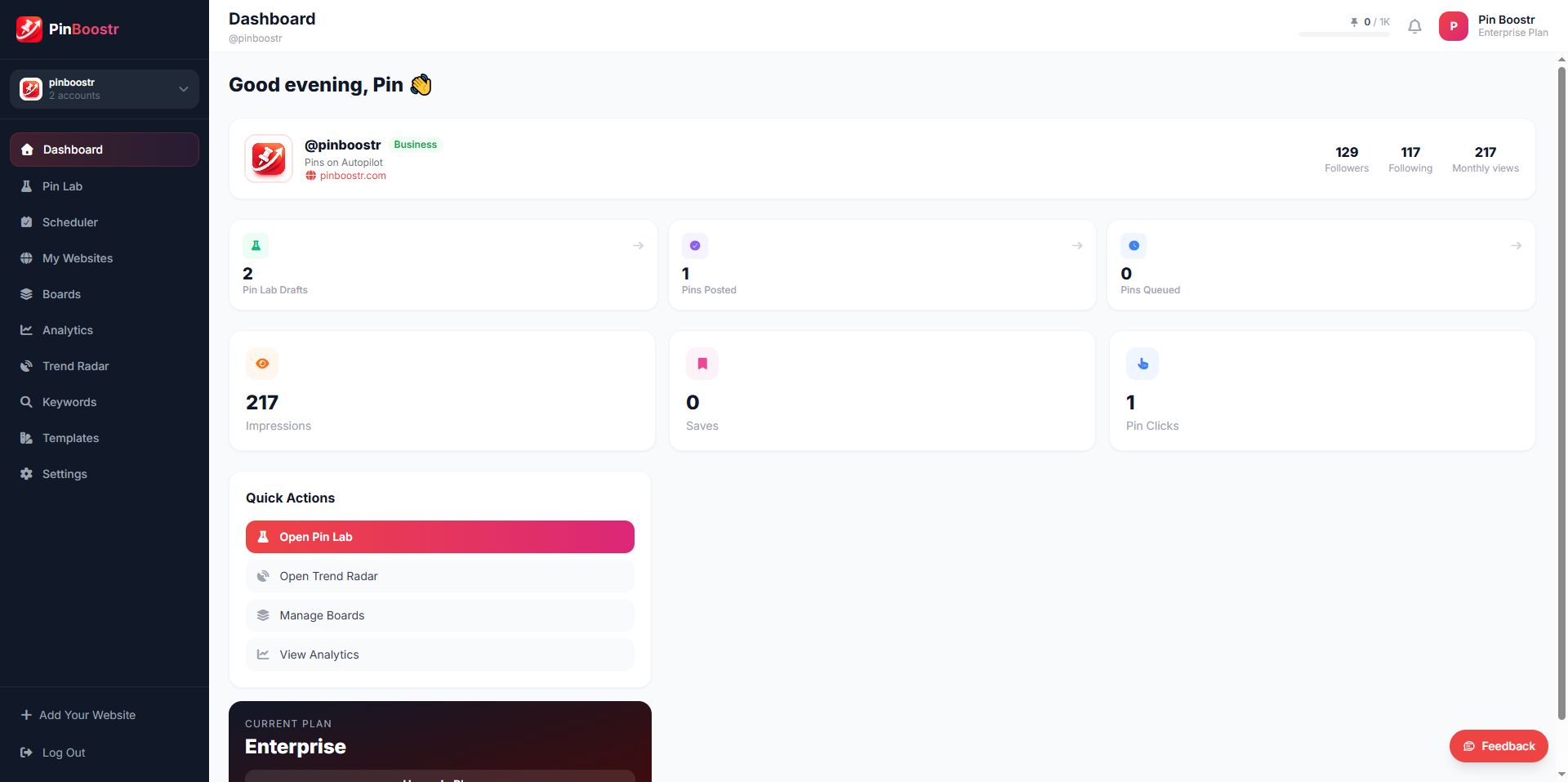
PinBoostr dashboard preview
PinBoostr Playbook

Use PinBoostr without guessing your next move

A complete operating guide for setup, Pin Lab, designs, Growth Brain, Scheduler, research, analytics, and recovery when a workflow gets stuck.

Start here

A clean first session beats fixing a messy queue later

This guide is designed as a task list, not a wall of documentation. Start with setup, build one controlled Pin Lab batch, then expand into autopilot once the basics are working.

01

Connect the workspace

Pinterest, boards, website, and limits. 5 min

This gives PinBoostr the account, board, website, and plan context it needs before creating or publishing pins.

  1. 1 Sign in and open the dashboard.
  2. 2 Connect Pinterest from Settings using the official OAuth flow.
  3. 3 Refresh Boards so PinBoostr can read the current board list.
  4. 4 Add your website and run the site summary if you plan to use AI images or Growth Brain.
  5. 5 Check daily pin, AI image, keyword, and website limits before approving a large batch.
What to do next

When your account, boards, and website are ready, create your first small Pin Lab batch.

If you get stuck
  • Connection fails: log out of Pinterest in the browser, then reconnect.
  • Boards missing: refresh Boards and confirm the selected Pinterest account.
  • Website missing: check the URL, sitemap, and connector status.
02

Build reviewed pins in Pin Lab

Manual batches with full control. 10 min

Pin Lab is the controlled creation flow. Use it when you want to inspect every title, image, board, template, and schedule before publishing.

  1. 1 Open Pin Lab and add URLs, selected content groups, or rows.
  2. 2 Pull metadata so each draft receives source data and available images.
  3. 3 Generate AI copy for Pinterest title, description, alt text, design text, and board suggestions.
  4. 4 Open each draft and resolve every Required item shown in the editor.
  5. 5 Choose a template, AI image, or image-only output, then schedule and approve the ready pins.
What to do next

Approve only complete pins. Send unfinished rows back to editing instead of forcing them through.

If you get stuck
  • Required warning: open the row and fix the listed fields.
  • Weak AI copy: select the correct website and board, then regenerate.
  • Image issue: pick another image slot, use image-only mode, or generate an AI image.
03

Choose the visual output

Templates, AI images, and image-only pins. 6 min

PinBoostr can either render a designed template, publish a finished image directly, or generate a final AI pin image from your website style.

  1. 1 Use My Templates to create reusable brand layouts.
  2. 2 Choose template mode when you want PinBoostr to render text and images into a layout.
  3. 3 Choose image-only mode when the uploaded or selected image is already final.
  4. 4 Choose AI image mode when you want a generated final Pinterest graphic.
  5. 5 Preview the final visual before approval so text, crop, and contrast are correct.
What to do next

After the visual preview looks right, return to Pin Lab or Scheduler and save the pin.

If you get stuck
  • Empty slot: open Images and fill each required slot.
  • AI image blocked: complete AI Designer Summary for the website.
  • Crowded text: shorten Design Text or edit the template canvas.
04

Use Growth Brain for autopilot

Automated planning with review controls. 12 min

Growth Brain turns website content, keyword context, board matching, and performance learning into a review-ready publishing plan.

  1. 1 Select the website, Pinterest account, boards, and publishing settings.
  2. 2 Review suggested URLs, ideas, keywords, and board matches before approval.
  3. 3 Let Growth Brain create drafts with copy, visuals, boards, and scheduled times.
  4. 4 Review the queue and adjust any board, title, design, or schedule that feels wrong.
  5. 5 Approve the ready pins and come back later to inspect winners, cooldowns, and next actions.
What to do next

Use Growth Brain when consistency matters more than building every draft by hand.

If you get stuck
  • No ideas: confirm website content synced correctly.
  • Bad board match: refresh Boards and rerun with the right website selected.
  • Blocked queue item: open the job or draft and fix the visible missing field.
05

Manage the publishing queue

Edit, reschedule, render, and retry. 7 min

Scheduler is the source of truth for approved pins before and after publishing. It is where you keep timing, boards, images, and status clean.

  1. 1 Open Scheduler to review upcoming, posted, failed, skipped, and pending jobs.
  2. 2 Switch between calendar and list views depending on how you want to inspect the queue.
  3. 3 Open a scheduled pin to edit title, description, alt text, board, image, template, or time.
  4. 4 Save and render again when a template or visual changes.
  5. 5 Read failed-job errors, fix the cause, then retry or reschedule.
What to do next

Keep failed pins low and avoid crowding too many similar pins into the same short window.

If you get stuck
  • Failed pin: open the job and read the error before changing anything.
  • Wrong date: edit the scheduled time directly.
  • Old preview: save and render again after design edits.
06

Research topics before creating more pins

Keywords, trends, and content angles. 8 min

Search Insights helps your pin language match how Pinterest users search. Use it before building a larger batch.

  1. 1 Open Search Insights or Keyword Research.
  2. 2 Search the main topic, product category, blog subject, or seasonal idea.
  3. 3 Save keyword ideas that truthfully match your content.
  4. 4 Use strong keywords in titles, descriptions, board decisions, and design text.
  5. 5 Use Trend Finder when you need seasonal or rising-topic inspiration.
What to do next

Turn the strongest keyword or trend into a focused Pin Lab batch.

If you get stuck
  • Too broad: add audience, season, product, or problem context.
  • Limit reached: check keyword allowance in Settings.
  • Idea mismatch: choose a truthful angle instead of forcing a keyword.
07

Use Analytics to plan the next batch

Learn from clicks, saves, boards, and URLs. 8 min

Analytics turns Pinterest performance into decisions. Look for patterns across boards, URLs, keywords, templates, and pin hooks.

  1. 1 Wait until pins have had enough time to gather Pinterest data.
  2. 2 Compare boards, URLs, templates, keywords, saves, impressions, and outbound clicks.
  3. 3 Find winners with strong click-through, saves, or traffic value.
  4. 4 Create more pins for winning topics without repeating the same creative too closely.
  5. 5 Use weak results to change hooks, board choices, image style, or schedule timing.
What to do next

Your next batch should come from the strongest URL, board, keyword, or creative pattern you can identify.

If you get stuck
  • No data: confirm pins posted and wait for Pinterest reporting.
  • High impressions, low clicks: improve the hook and destination relevance.
  • Low impressions: test better keywords, boards, and timing.
08

Keep account operations healthy

Billing, limits, accounts, and support. 4 min

Most workflow problems are easier to solve when account, usage, billing, website, and support details are easy to verify.

  1. 1 Open Settings to review plan, billing, and usage status.
  2. 2 Confirm the selected Pinterest account before creating client or brand work.
  3. 3 Check daily pin limits before approving a large queue.
  4. 4 Upgrade or adjust billing when a feature is locked by plan limits.
  5. 5 Contact support with exact IDs, screenshots, account email, and the visible error.
What to do next

If a workflow feels blocked, collect the exact error and check Settings before rebuilding the work.

If you get stuck
  • Usage high: pause approvals until allowance resets or upgrade.
  • Feature locked: compare plan limits on Pricing.
  • Support needed: send the URL, board, title, schedule time, screenshot, and job or draft ID.
When something is stuck

Fix the cause before rebuilding the work

Most problems come from one of a few places: account connection, board access, missing images, incomplete draft fields, plan limits, website context, or a schedule conflict.

Send support useful context

Include account email, Pinterest account, website URL, draft ID or job ID, the page you were on, the visible error, and a screenshot.

Pinterest will not connect

Reconnect from Settings after logging into the right Pinterest account in the same browser.

Boards are missing

Refresh Boards and confirm the active Pinterest account owns or can access those boards.

Pin Lab row is not ready

Open the row editor and fix every Required item before approval.

AI image is blocked

Complete AI Designer Summary for the selected website, then generate again.

Schedule approval is blocked

Review the warning or blocker, adjust timing, then regenerate the schedule.

A scheduled pin failed

Open the job, read the error, fix the cause, then retry or reschedule.

Analytics is empty

Confirm pins have posted and wait for Pinterest reporting to update.

Website content is missing

Check sitemap, connector status, selected website, and public URL access.

First recommended action

Create one small reviewed batch before turning on autopilot

That gives you confidence in the connected account, board matching, visuals, copy, schedule, and approval flow.