LinkedIn Analytics Explained: Impressions, Reach and Engagement
What LinkedIn impressions, members reached and engagements mean, where to find your analytics, how to calculate engagement rate, and what to track weekly.

On this page
- Where to find LinkedIn analytics on a personal profile
- Every LinkedIn metric, as LinkedIn defines it
- Impressions vs members reached vs views
- What “engagements” includes
- LinkedIn engagement rate formula (with a worked example)
- Company page analytics, briefly
- What to track every week
- Where PinBoostr fits (and where it does not)
- FAQ
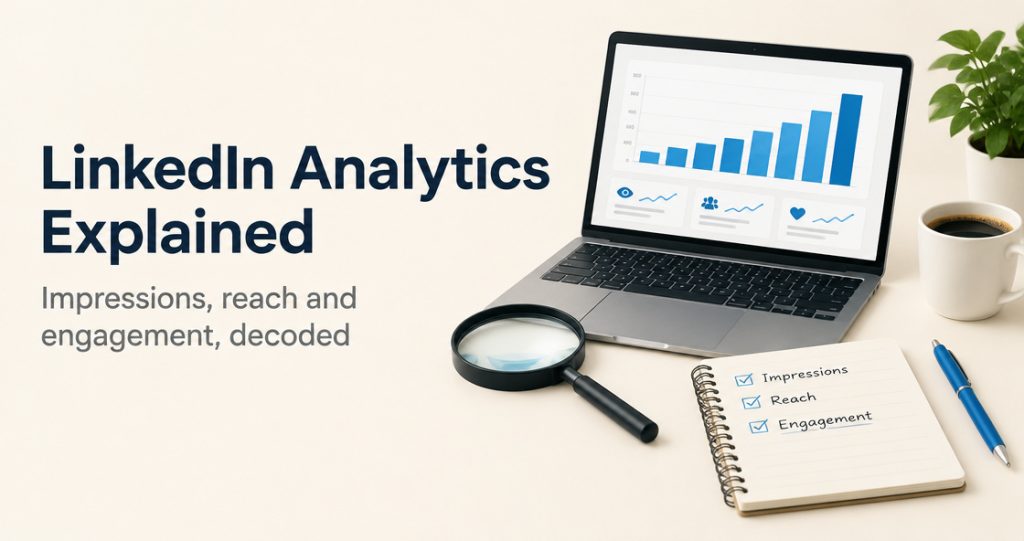
LinkedIn analytics are the numbers LinkedIn shows you about your posts and your profile. Impressions count how many times your post was shown on screen, members reached counts how many distinct members and Pages saw it at least once, and engagement is what people did with it: reactions, comments, reposts, saves and sends. You find all of them in the Analytics section of your own profile, and only you can see your post analytics.
Where to find LinkedIn analytics on a personal profile
On desktop, click the Me icon, then View Profile, scroll to the Analytics section and click Show all analytics. On the mobile app, tap your profile photo, tap it again to open your profile, and tap Show all analytics in the Analytics section. This opens Analytics & tools, which brings together creator analytics (your posts and your audience), profile insights (profile viewers and search appearances) and newsletter analytics if you write a newsletter.
For one post, go to Me, then Posts & Activity under Manage and click the impressions number under any post, or View analytics.
A few details that save confusion:
- The default range is the past 7 days. In combined post analytics you can choose anything from the past 7 days up to the past 365 days. Custom date ranges only work in the mobile app.
- Data runs through yesterday, so each day in the chart is complete. Today’s numbers are not there yet.
- You can export your analytics to an .XLSX file from the upper-right corner.
Every LinkedIn metric, as LinkedIn defines it
These definitions come from LinkedIn Help’s pages on post analytics and combined post analytics, in plain words.
| Metric | What LinkedIn counts | Where you see it |
|---|---|---|
| Impressions | Times your post was displayed on screen. An estimate. | Each post, combined post analytics |
| Members reached | Distinct members and Pages that saw your post. Repeat views are not counted. | Each post (Discovery) |
| In network / Out of network | Share of impressions from people who follow or are connected to you, versus people who are not | Combined post analytics |
| Reactions | Times members or Pages reacted to your post | Each post, combined |
| Comments | Times members or Pages commented | Each post, combined |
| Reposts | Times members or Pages shared your post to their own feed | Each post, combined |
| Saves | Times members saved your post | Each post, combined |
| Sends on LinkedIn | Times members sent your post to others on LinkedIn | Each post, combined |
| Link clicks | Visits to external links in the post, repeats included (links flagged as spam and links to LinkedIn content are left out) | Each post |
| Profile viewers from this post | Distinct members and Page admins who viewed your profile from the post | Each post |
| Followers gained from this post | Members who followed you as a result of the post | Each post |
| Profile views | Your recent profile visitors, subject to their privacy settings | Profile, Analytics section |
| Followers | Total followers, plus new followers and their demographics for the chosen range | Creator analytics, Audience |
| Search appearances | How often your profile appeared in LinkedIn search results (not clicks) | Profile, Analytics section |
Two rules apply to the whole list. Your own views, engagements, link clicks, saves and sends count toward your post analytics, so checking your post ten times adds to the numbers. And data expires: members reached data stays for 400 days, while discovery and engagement counts stay for 1,000 days.
Profile views have their own limits. On a free account, Who’s viewed your profile covers the last 90 days and lists the three most recent viewers; Premium extends this to up to 365 days of viewer data.
Impressions vs members reached vs views
The difference between impressions and members reached is repeat views. If one member scrolls past your post five times over two days, that is five impressions and one member reached. So impressions are always equal to or higher than members reached, and the gap tells you how often the same people saw the post again.
“Views” is a third word you will see. On video posts, LinkedIn counts a view only when the video plays for two or more continuous seconds, so a video’s views are usually lower than its impressions. Articles and newsletters report views too. When someone asks about LinkedIn impressions vs views, the short answer is: an impression means the post was on screen; a view means someone actually started watching or opened it.
Search appearances are different again. They count how often your profile showed up in LinkedIn search, and LinkedIn says that does not mean the person clicked through. On the search appearances page, you also see the top companies and job titles of the people who found you, and the job titles you were found for. This data updates weekly on Wednesdays.
What “engagements” includes
In combined post analytics, switch the dropdown from Impressions to Engagements. LinkedIn’s engagement total adds up reactions, comments, reposts, saves and sends. It is engagements received minus engagements removed, so a deleted comment or a removed reaction lowers it. Link clicks, profile viewers and followers gained are tracked separately and are not part of that total.
LinkedIn engagement rate formula (with a worked example)
Personal post analytics do not show an engagement rate, so you calculate it yourself. The most common version divides engagements by impressions:
Engagement rate = (reactions + comments + reposts + saves + sends) / impressions x 100
Here is a worked example. These are made-up round numbers for illustration, not real data or a benchmark.
- Impressions: 10,000
- Members reached: 6,000
- Reactions: 120, comments: 40, reposts: 10, saves: 20, sends: 10
- Engagements: 120 + 40 + 10 + 20 + 10 = 200
- Engagement rate by impressions: 200 / 10,000 x 100 = 2.0%
- Engagement rate by reach: 200 / 6,000 x 100 = 3.3%
Both versions are valid; the reach version is higher because each person counts once. What matters is that you pick one formula and use it every week, so the numbers stay comparable. Before comparing yourself with figures in third-party reports, check which formula they used.
Company page analytics, briefly
If you manage a LinkedIn Page, go to the Page admin view and click Analytics in the left menu. You can then open Content, Visitors, Followers, Search Appearances, Leads, Newsletters, Competitors or Employer Brand. Only Page admins can see these, as LinkedIn explains in Access your LinkedIn Page analytics.
Page content analytics use a slightly different set of numbers. They include clicks (on your content, company name or logo), CTR (clicks divided by impressions) and an engagement rate that LinkedIn describes as interactions per impression, where interactions include clicks, reactions, comments and shares. Because clicks are in it, a Page’s engagement rate is not directly comparable with the personal formula above.
What to track every week
Keep the weekly check to the same short list:
- Impressions and engagements for the past 7 days, compared with the week before. Note how many posts you published.
- Members reached per post. If impressions grow but reach does not, the same people are seeing you more often.
- Engagement rate per post, with the one formula you chose.
- Comments, saves and sends on their own. Many saves and sends means people found the post worth keeping or passing on.
- Followers gained and profile viewers from each post.
- In network vs out of network. A rising out-of-network share means your posts are reaching people beyond your connections.
- Search appearances after Wednesday’s update, especially if you changed your headline. The free LinkedIn headline generator helps you test new wording.
- Export once a week and paste the numbers into one sheet. Members reached is only kept for 400 days, so your own record is the long-term history.
Change one thing at a time, such as your posting frequency or the time of day you post, and give it a few weeks before you judge it.
Where PinBoostr fits (and where it does not)
To be clear: PinBoostr does not show LinkedIn analytics. Use LinkedIn’s own Analytics section for every number in this guide. PinBoostr helps with the posting side: you write posts or draft them with AI in your own voice, design PDF carousels, and schedule them to your personal profile through LinkedIn’s official API. Nothing goes out until you approve it. That steady schedule is what makes your weekly numbers worth comparing. The LinkedIn scheduling tool is in open beta and free to try.
FAQ
What does impressions mean on LinkedIn?
Impressions are the number of times your post was displayed on screen. LinkedIn counts repeat displays to the same person, and it says the number is an estimate.
What is the difference between impressions and members reached?
Members reached counts distinct members and Pages that saw your post, once each. Impressions count every display, so one person who sees a post five times adds five impressions but only one member reached.
Do my own views count in LinkedIn analytics?
Yes. LinkedIn says your own views, engagements, link clicks, saves and sends count toward your post analytics.
How do I calculate my LinkedIn engagement rate?
Add reactions, comments, reposts, saves and sends, divide by impressions and multiply by 100. Some people divide by members reached instead; either works if you use the same formula every time.
Can other people see my LinkedIn post analytics?
No. LinkedIn says only you can view your post analytics. Other people can see public counts like reactions and comments under the post.
How often do LinkedIn search appearances update?
Weekly, on Wednesdays.